
Style Browser
Browse, search, filter, and preview styles with community examples. Click Use style to jump straight into generate with the look you picked.
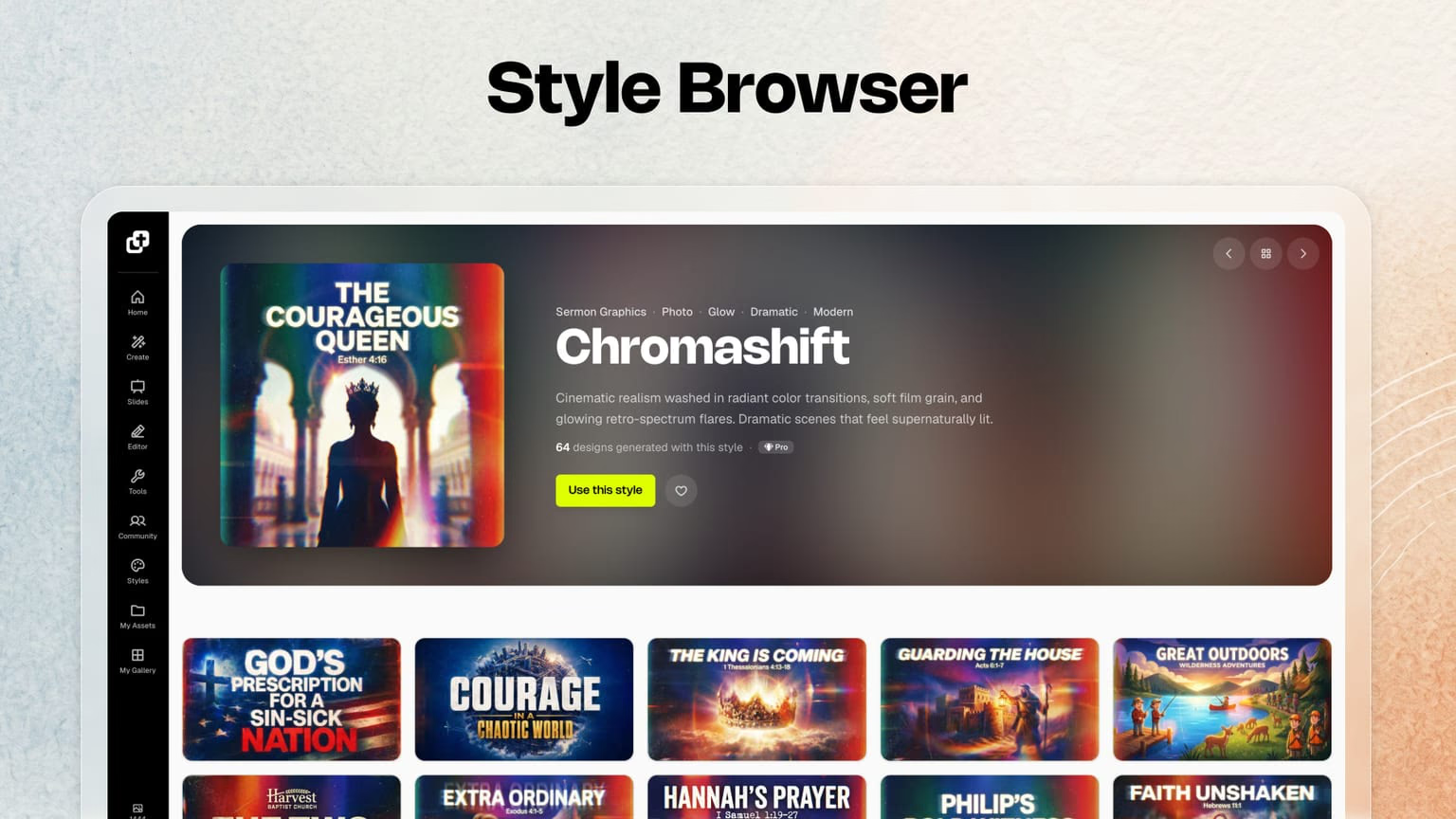
Styles used to live mostly inside the generate flow. Useful, but easy to miss. The new Style Browser puts styles in the left panel as a first-class part of Church Canvas, so discovering the right look is as natural as generating the graphic.
Styles in the left panel
Browse the library without hunting through a buried picker.
Search and tags
Find styles by name, description, or tags like youth, sermon, and photo.
Larger previews
See each look up close before you commit a credit.
Community examples
Open a style and review generations from other churches.
Use style
One click sends you to generate with that style already selected.
Picker polish too
The generate style picker got the same attention: browse groups, bigger tiles, faster loading.
We believe style presets are the easiest, fastest, and best way to create with Church Canvas. They give you a strong starting look without trapping you in a template. Prompt a different sermon, youth night, or campus photo and the same style still produces a fresh graphic.
The Style Browser makes that belief practical. Instead of treating styles as a side option, Church Canvas now treats them like a library you can actually explore.
What you can do in the Style Browser
- Browse larger style cards so the vibe is obvious before you generate
- Search by style name or description
- Filter by tags when you need youth energy, sermon gravity, kids warmth, photo looks, and more
- Sort the library, including most-used views when you want proven favorites
- Open a style detail page for a bigger preview and full description
- See community generations made with that style, so you can spot what it handles well
- Click Use style to jump into generate with the style already selected
That last step is the win. Discovery and creation stay connected. You are not copying a style name into another screen and hoping you remembered it right.
Why community examples matter
A style thumbnail shows one possibility. Community examples show the range.
Open a style and you can see how other churches used it for series titles, event promos, verse graphics, and youth nights. That makes it easier to judge flexibility: what stays consistent, what adapts, and whether the look fits your calendar this week.
Then click Use style and keep moving.
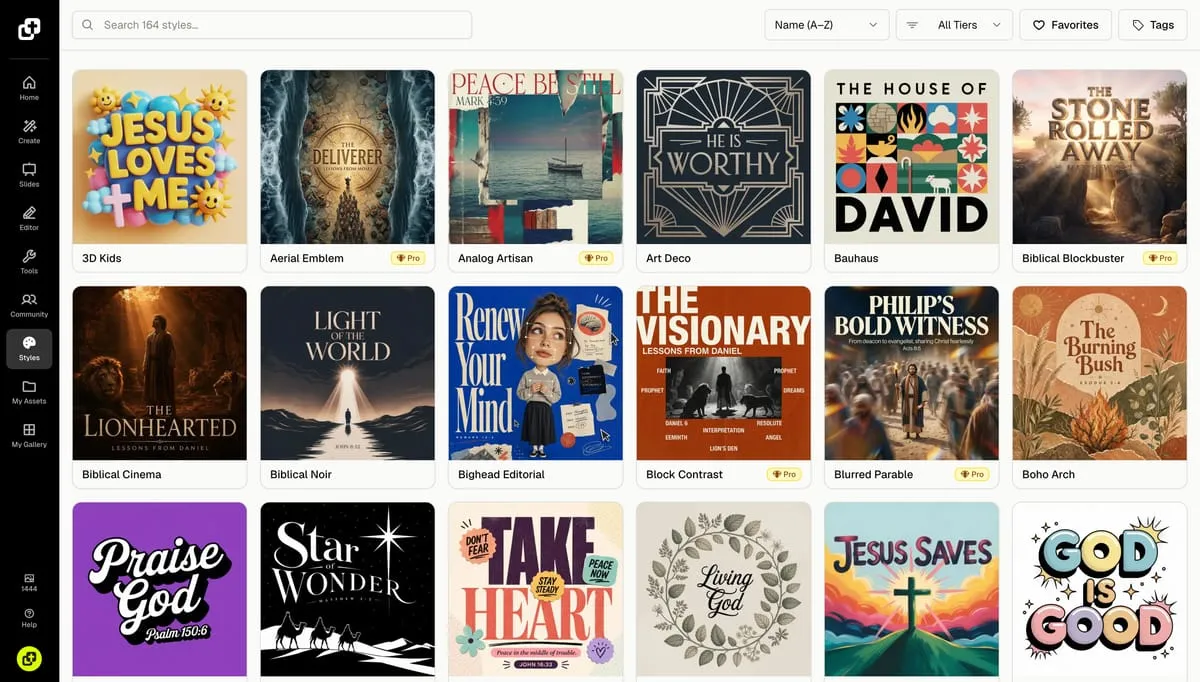
Built for a bigger styles library
This lands alongside our 50 new style presets. A laundry list of looks is only helpful if you can find them. The Style Browser is the map for that library, and for everything we add next.
It also pairs with Nano Banana 2 Lite, the default for Basic and Plus. Better prompt adherence means styles land more consistently, so browsing looks is worth the time.
The Style Browser is the discovery side of styles. The generate flow got a matching style picker redesign so selecting a look while you create is clearer and faster too.
Same idea throughout Church Canvas: styles first, then your prompt, then a graphic that fits your church.
Try it
Log in, open Styles in the left panel, and browse a few tags that match this week. Open one style, skim the community examples, then hit Use style. If you are exploring the new library, start with the 50 new style presets drop and come back here whenever you need a better way to find them.
Style Browser FAQ
Where do I find the Style Browser?
Open Church Canvas and use Styles in the left panel. That opens the browsable library with search, tags, larger previews, and style detail pages.
What can I do on a style page?
You can read the description, browse tags, favorite a style, flip through preview images, and see community generations that used it. When you are ready, click Use style to jump into generate.
Can I sort by most-used styles?
Yes. Sorting options include name plus most-used and least-used views for admins reviewing the library, so popular styles are easier to surface.
Why does this matter with 50 new styles?
A bigger library needs better discovery. The Style Browser is how you explore the new presets without guessing from tiny thumbnails alone.
Are you changing the styles modal too?
Yes. We redesigned the generate style picker with browse groups, larger tiles, and safer explore behavior. See our style picker polish product update for the full walkthrough.