
Slides: full sermon decks
Slides on Plus now builds full sermon decks. Turn your 16:9 sermon graphic into a matching deck, present in-app, and export PNG or PowerPoint for Sunday.
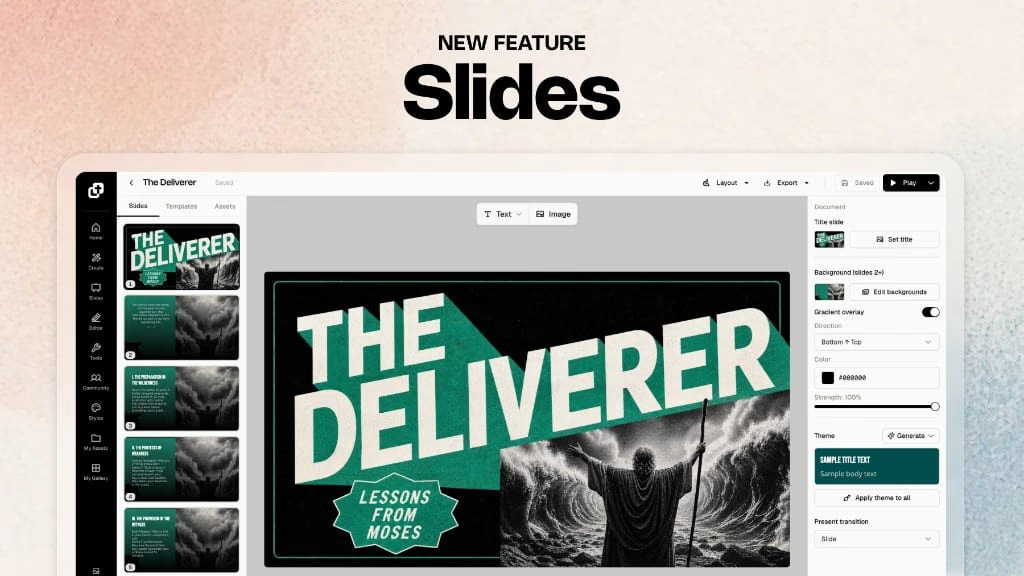
Slides on Plus now builds full sermon decks. Start from a 16:9 sermon graphic, finish the message in the Slides editor, rehearse with Play, and export PNG or PowerPoint for Sunday.
If you have ever finished that graphic and then realized you still had to rebuild the slides, you know the feeling. You already have the design, the theme, and the title. Then you remake it all again in presentation software.
Slides is ready for the whole deck. Open Slides, set your title slide from the gallery, and finish without starting over.
Starts from your graphic
Set a 16:9 gallery graphic as the title slide for the deck.
Four matching backgrounds
Generate a set of variations, then use one across the deck or mix them.
Import your outline
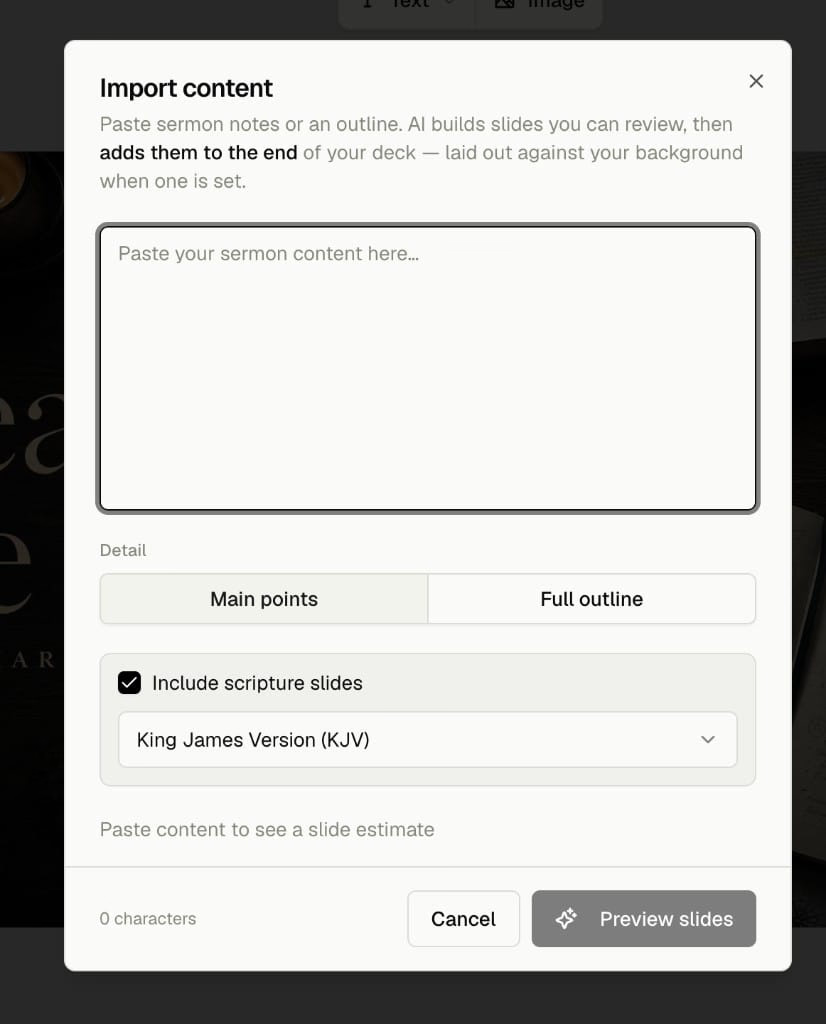
Paste main points or a full outline and preview the slides before they land.
Present and export
Rehearse with Play, then export PNG or PowerPoint for Sunday.
Why we built the full deck workspace.
We kept hearing the same thing after the first sermon slides launch: “I love the sermon graphic. Now I need the rest of the deck to match.”
That first launch gave you matching backgrounds and points from a title graphic. This update is the full workspace around it: editor, import, present, and export in one place under Slides.
Start from your sermon graphic.
This is the main path.
- Generate a widescreen (16:9) sermon graphic the way you normally would.
- Open Slides in the left menu.
- Create a new presentation.
- Set the title slide to that graphic from your gallery.
That title graphic becomes the foundation of the deck. Same vibe. Same series. Ready for the rest of the message.
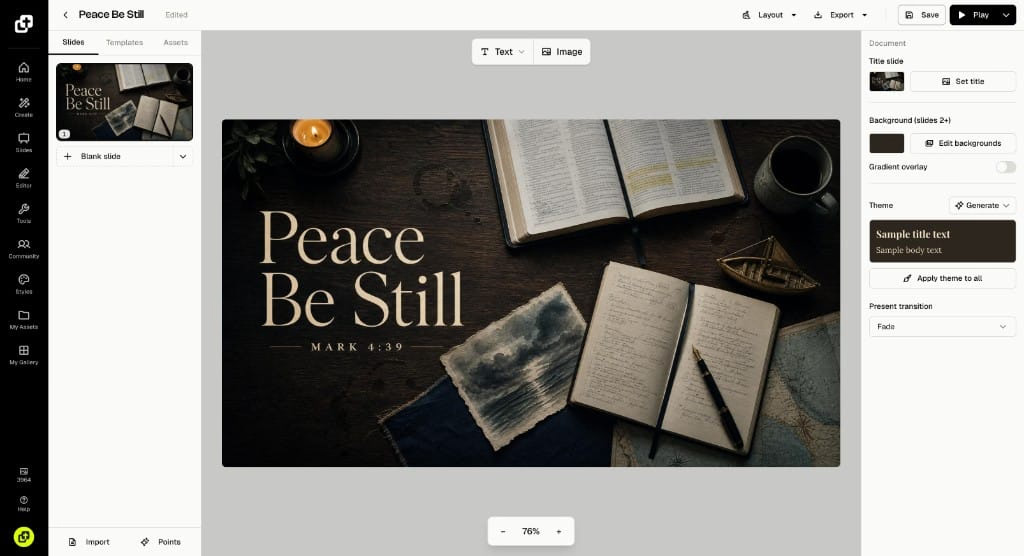
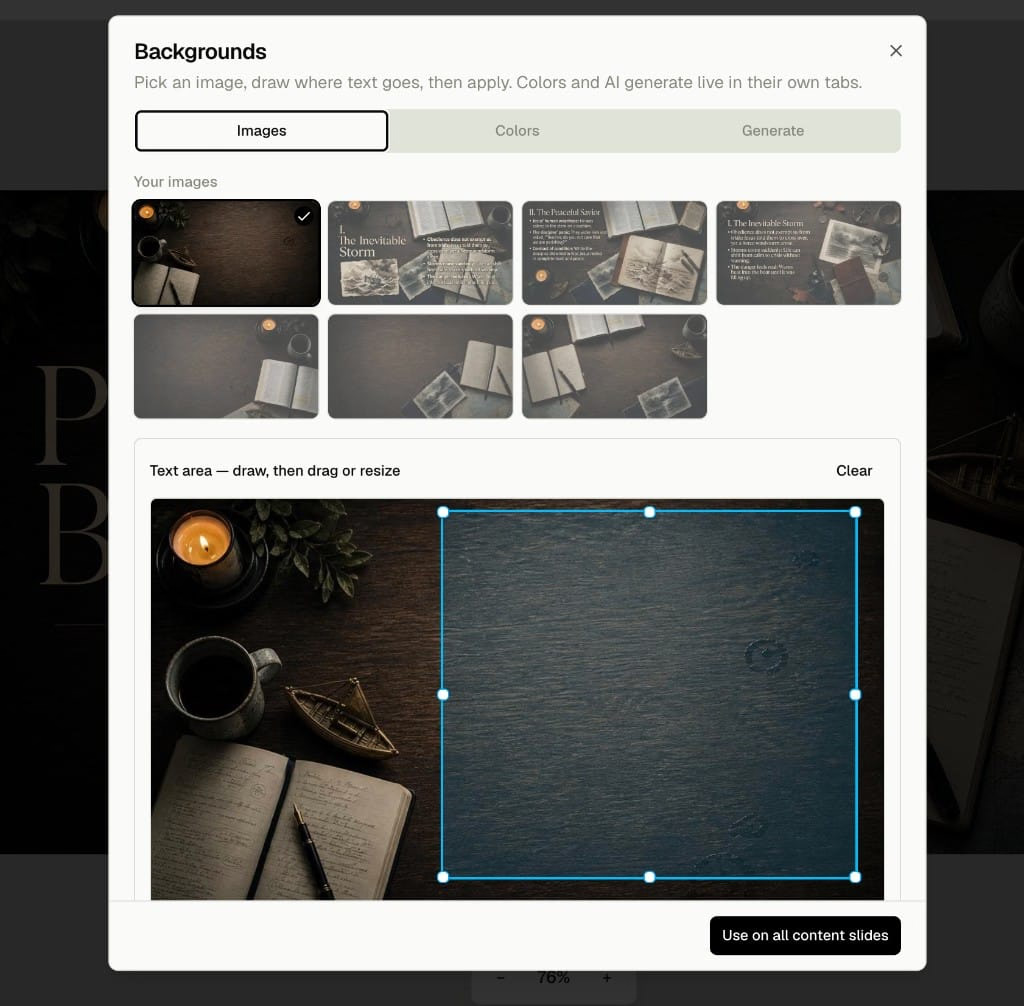
From there, generate matching backgrounds for the content slides. Church Canvas gives you four options. Use the same background across every content slide, or pick different variations for different points so the deck stays on-theme without looking copy-pasted.
Import main points or the full outline.
Already have the message written down? Paste it.
Open Import content, drop in your sermon notes, and choose Main points or Full outline. Scripture slides are on by default. Uncheck them if you do not need verses, or keep them and pick a Bible version. Preview the set, then add them to the end of your deck. If you already set a background, the new slides use it.
Design the whole deck, not one slide at a time.
This is not one slide at a time. Set your type styles once, then apply them across the deck. Use Polish text when spacing feels off. Use Position text when you want copy to sit in the Backgrounds text area. Pull logos and other images from your asset library. Want a point designed into the image? Generate that from the slide’s text.
Edit text, move blocks, reorder slides, hit Play to rehearse. It all stays under Slides for next week, alongside the simpler announcement slides workflow your team may already use for welcome and sign-ups.
Export for the tools you already use.
Export a single slide or the full deck as PNG images. Or download a PowerPoint (.pptx) file.
That .pptx opens in PowerPoint, Keynote, and Google Slides, and media teams can bring it into ProPresenter and the other Sunday tools they already run.
Try it this week.
Full sermon decks in Slides are available on Plus.
Log in, generate this Sunday’s 16:9 sermon graphic, open Slides, create a new presentation, and set that graphic as the title slide. Import your outline, lock in a theme, rehearse with Play, and export PNG or PowerPoint for your media team.
Same design. Same vibe. A full presentation ready for Sunday.
Slides FAQ
What is Slides in Church Canvas?
Slides is the Plus tool for full sermon decks. Generate a 16:9 sermon graphic, open Slides, start a new presentation, set that graphic as the title slide, then build the rest of the deck, present in the browser, and export PNG or PowerPoint.
How do I start a presentation from my sermon graphic?
Generate a widescreen (16:9) sermon graphic the way you normally would. Open Slides in the left menu, create a new presentation, then set the title slide to that graphic from your gallery. From there you can add slides, import your outline, and generate matching backgrounds.
Can I import my sermon outline?
Yes. In the Slides editor, open Import content, paste your notes, and choose Main points or Full outline. Scripture slides are included by default. Uncheck them if you do not want verses, or keep them on and pick a Bible version. Preview the set, then add the slides to your deck.
What can I export for Sunday?
Export a single slide or the full deck as PNG images, or download a PowerPoint (.pptx) file. That file opens in PowerPoint, Keynote, Google Slides, and tools like ProPresenter.
Who can use Slides for full decks?
The Slides editor and full-deck workflow are available on Plus, including during a Plus trial. Open Slides in the left panel once you are on Plus.