
Style Blending
Plus users can fuse two catalog styles on Generate into one A × B look. Mix the balance, split type and imagery, and save formulas for reuse.
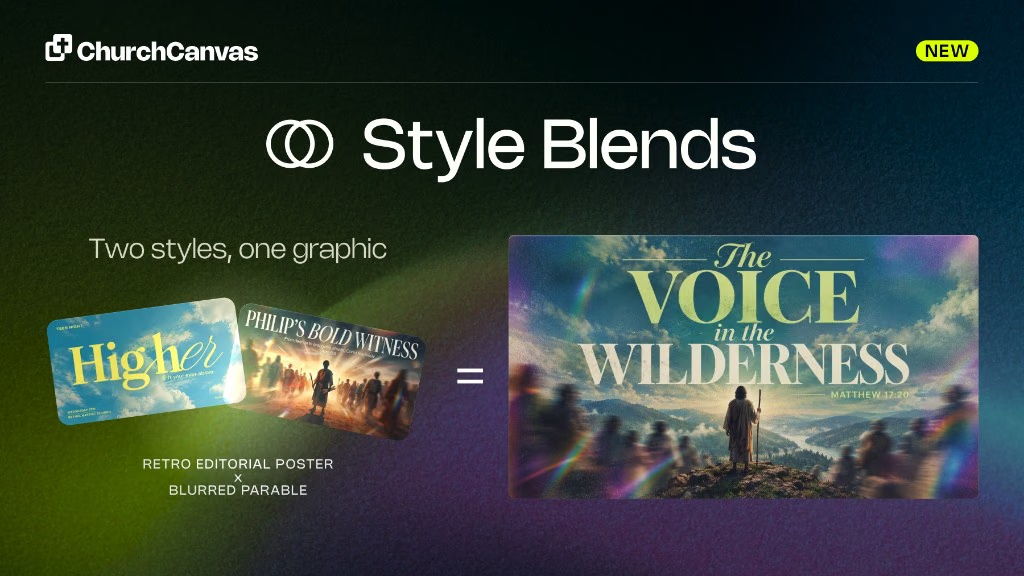
Church Canvas styles already give you a strong look before you type a word. Style Blending goes one step further for Plus: pick two catalog styles on Generate, and get one graphic that fuses both—shown as A × B.
Two styles, one graphic
Fuse any two catalog looks into a single A × B generation—not a third preset in the library.
Plus on Generate
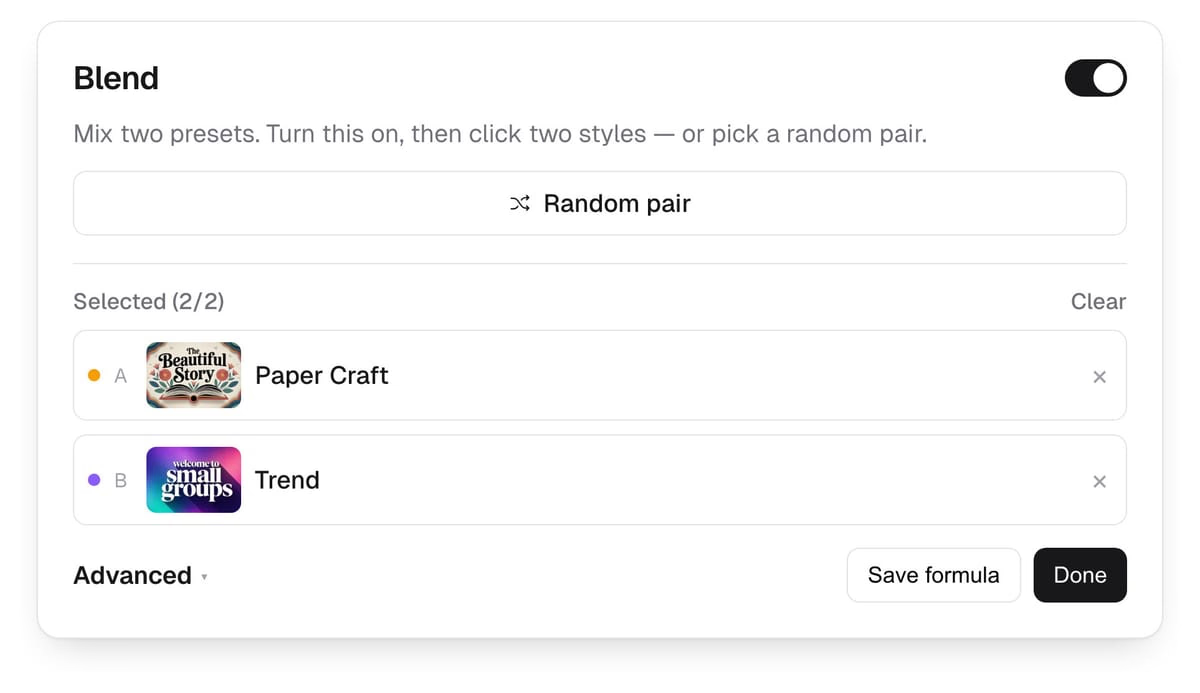
Turn on Blend in the style picker, click two styles (or grab a random pair), and generate.
Mix or Type / Image
Lean the balance with Mix, or assign typography to one style and imagery to the other.
Saved Blends
Save a formula in this browser and reopen it from the Saved Blends tab anytime.
Style presets are still the fastest way to create in Church Canvas. Blending keeps that workflow: you choose the vibe first, then prompt this week’s sermon title, event, or announcement. The difference is you are no longer locked to a single look when two styles both feel half-right.
What Style Blending is
Style Blending lives in the generate style modal. Turn Blend on, pick style A and style B from the catalog, and generate as usual. Church Canvas fuses both looks into one result and labels the selection Style A × Style B.
It is not a new style row in the library, and it is not a fixed template. Change the prompt and the same blend still produces a fresh graphic—just like a single style does today.
Style Blend examples
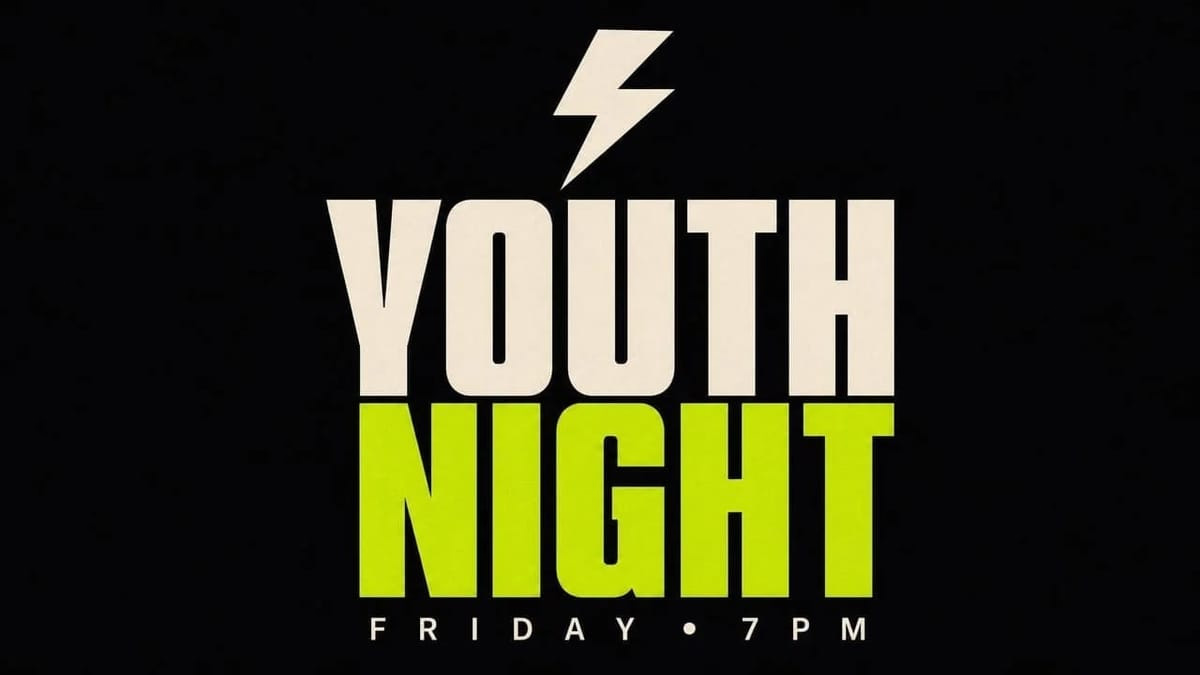
These graphics are real Style Blends from the community feed. Each card shows the two catalog styles and the blended result.
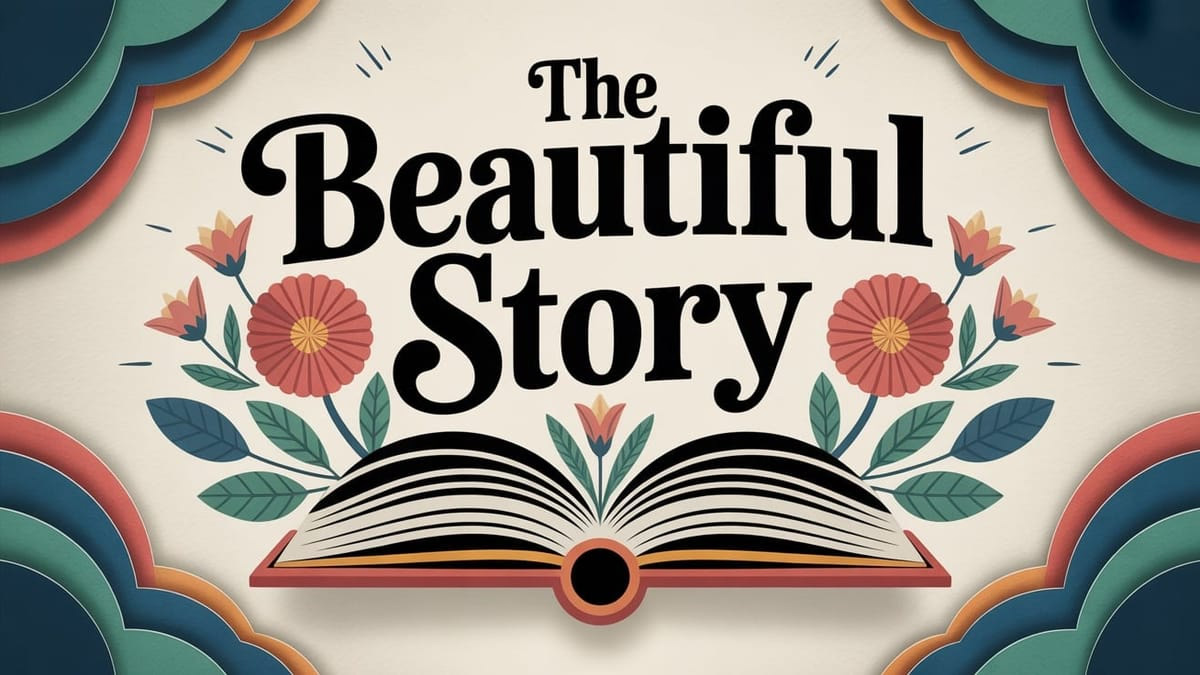
Paper Craft
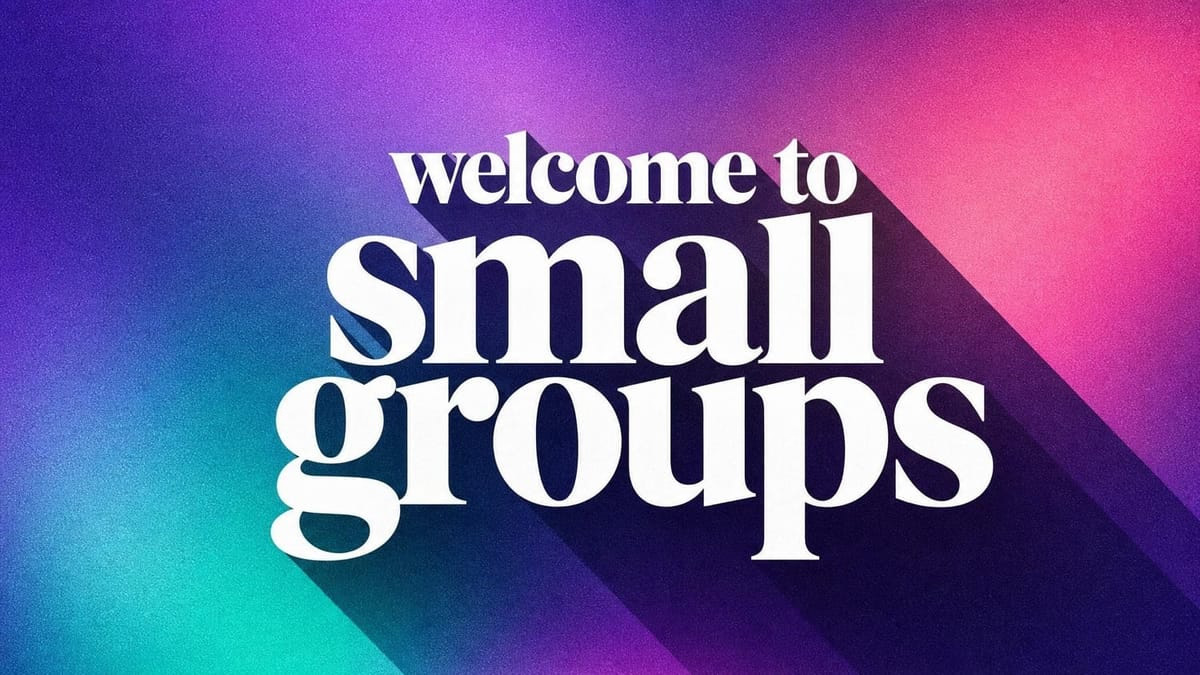
Trend
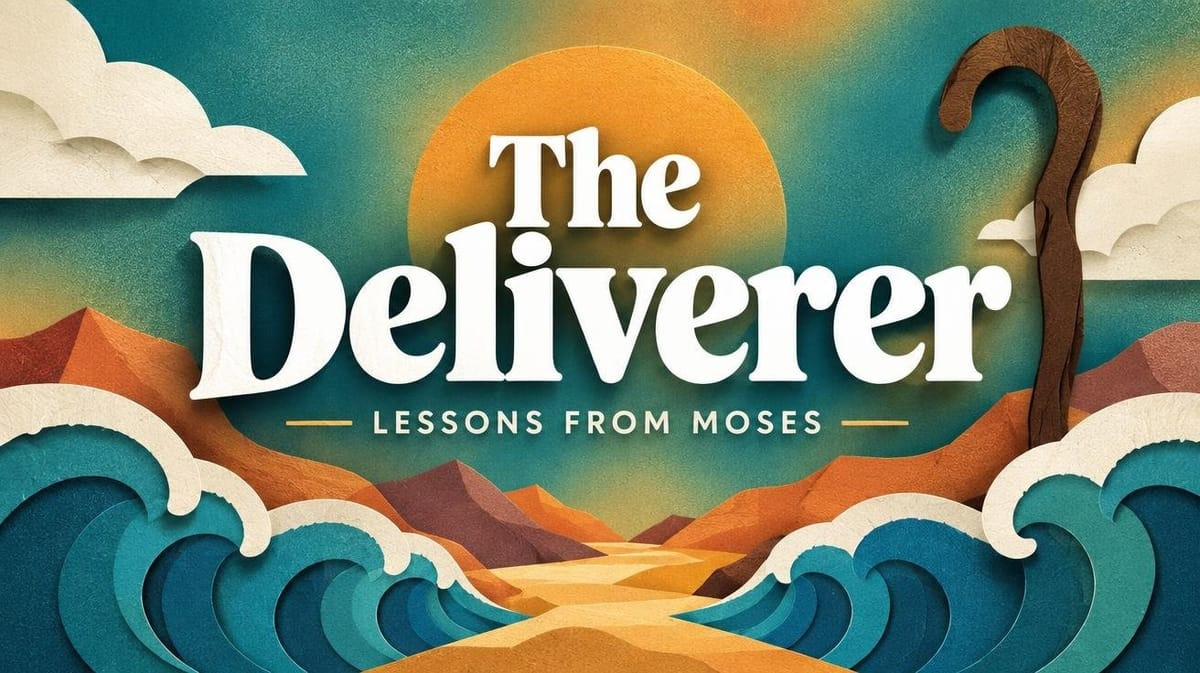
The Deliverer
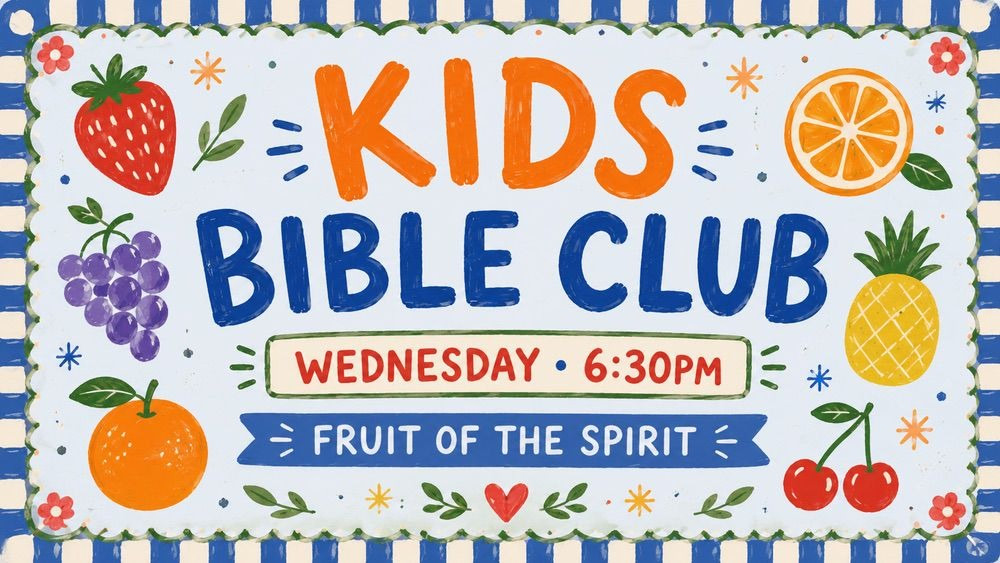
Playful Doodle
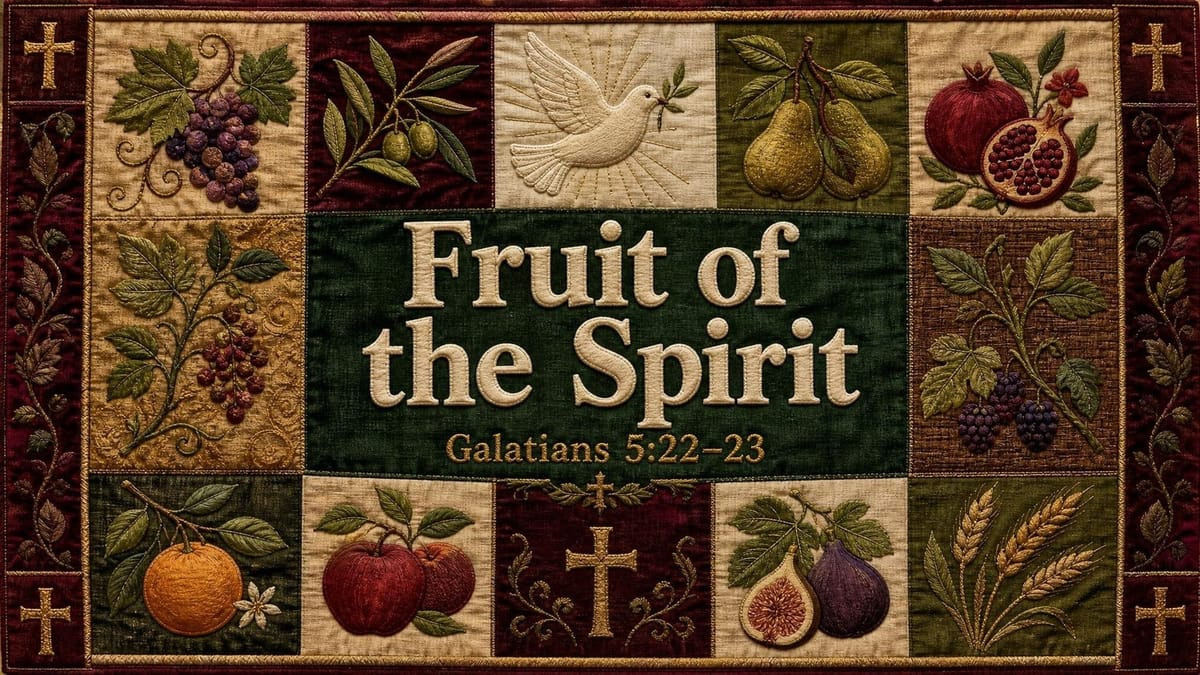
Textile Banner
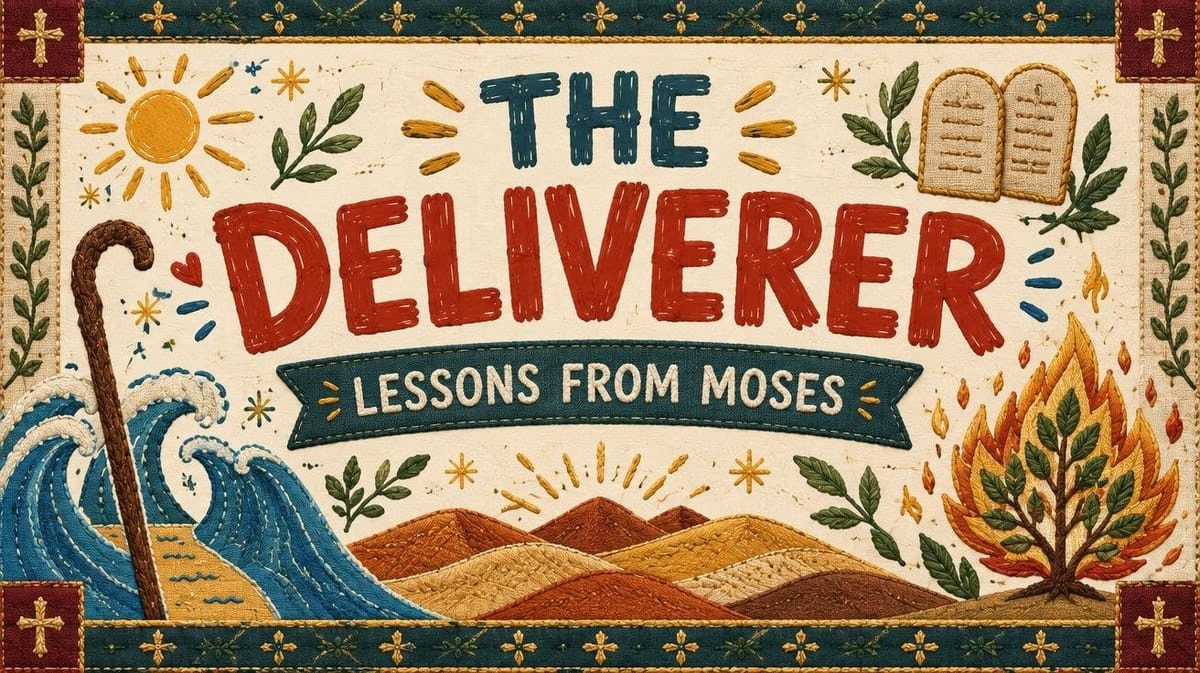
The Deliverer
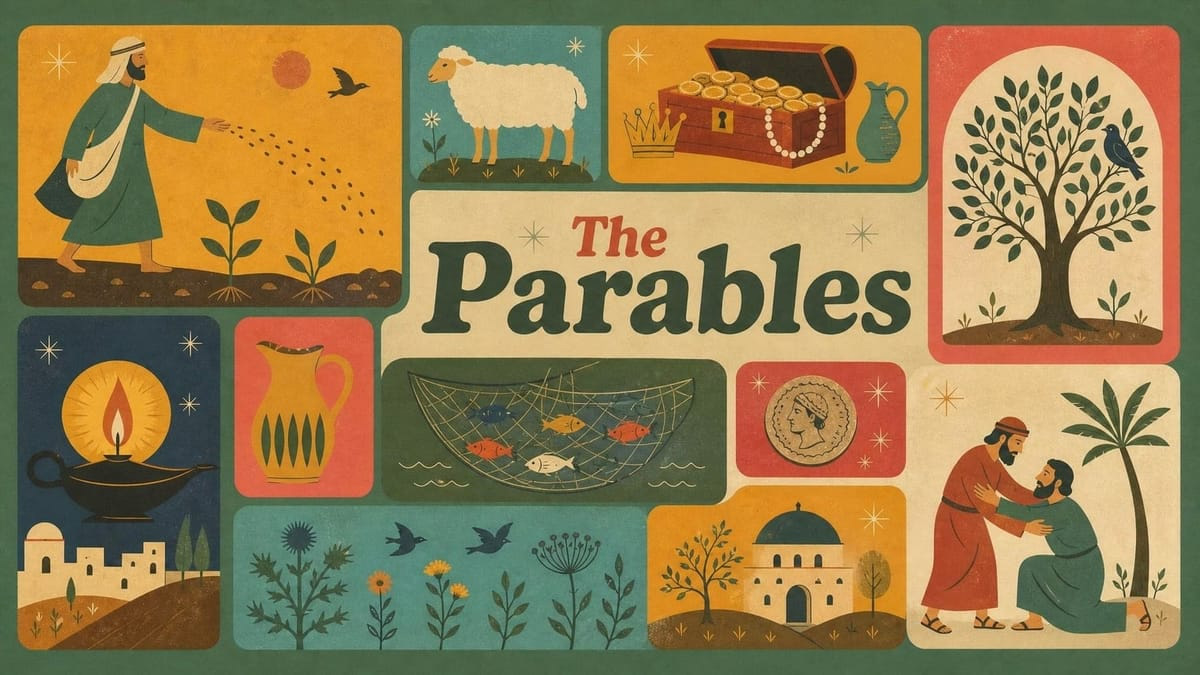
Storyboard

Y2K Toybox

Community Movie Night
Storyboard
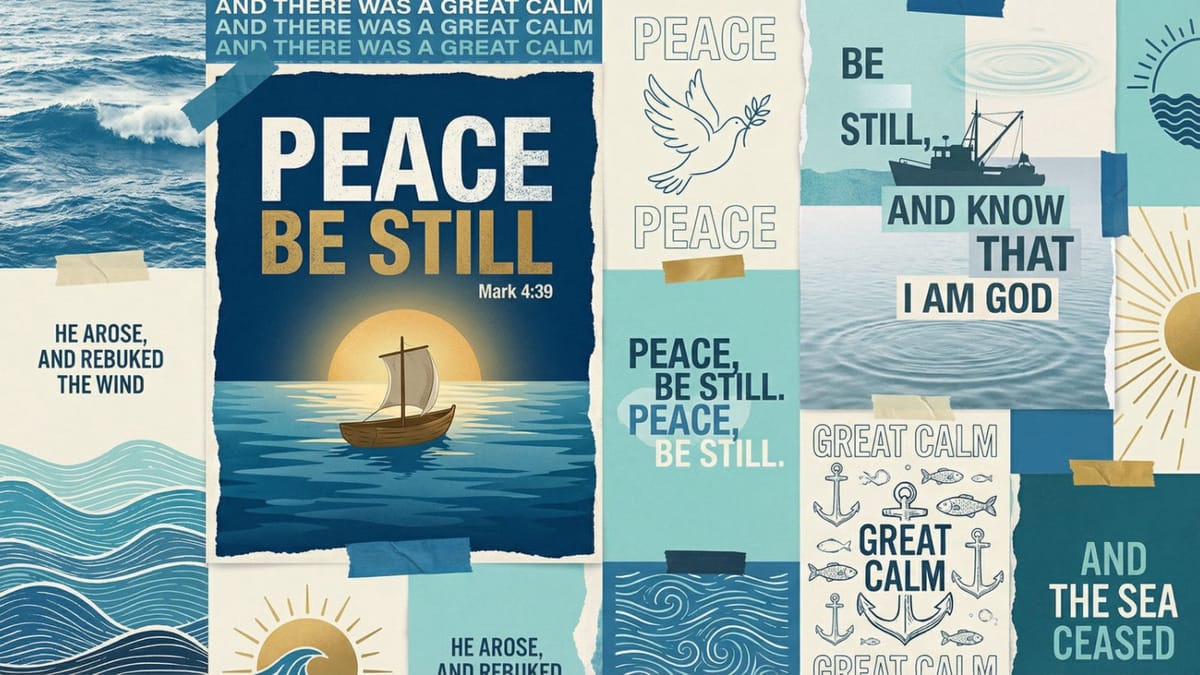
Poster Wall
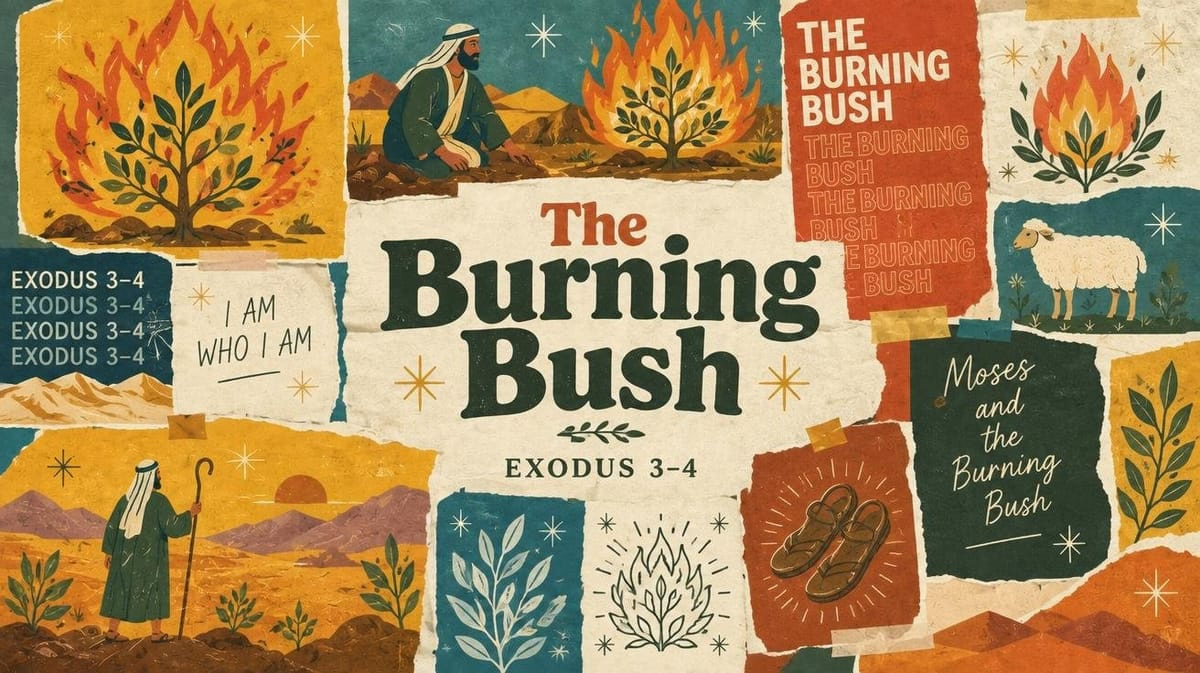
The Burning Bush
Quiet Mark
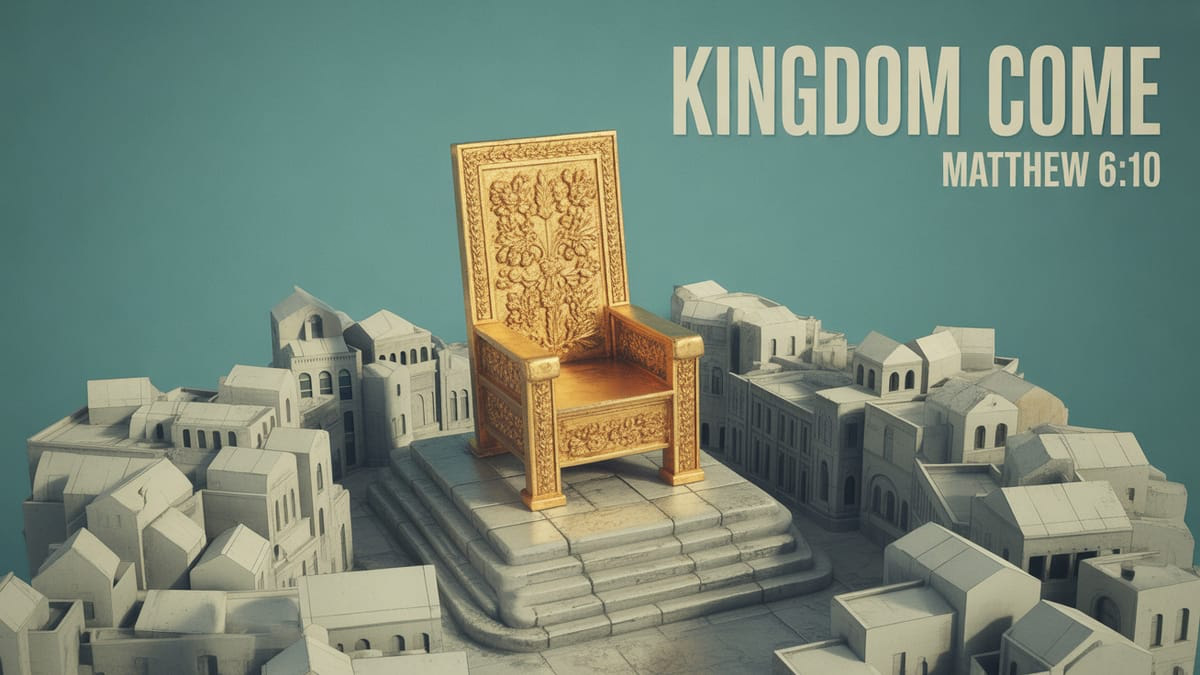
Minimal Diorama

Church Picnic
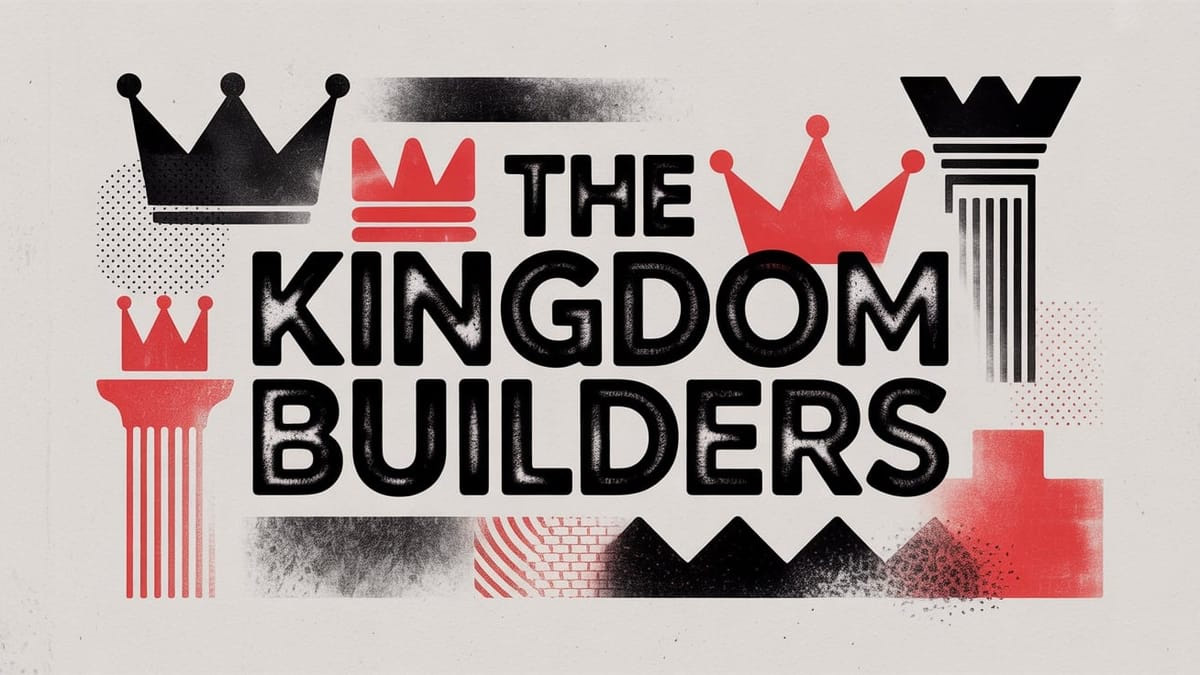
Risograph

Devotional Surreal

Unshakeable Kingdom
Built for Plus teams
Style Blending is a Plus feature. Media teams and creatives on Plus already lean on the full style library, Pro models, and weekly iteration. Blend is for the moments when one preset is close—but the type from another look, or the energy of a second vibe, would finish the job.
Free and Basic keep the single-style picker. When you are ready for A × B, see pricing and plans for Plus.
Mix and Type / Image
After you pick both styles, open Advanced to fine-tune the blend:
Mix — a Balance slider from A to B (defaults to an even 50/50 lean). Pull toward the style that should carry more of the look.
Type / Image — assign typography to one style and imagery to the other, then swap roles when you want the reverse.
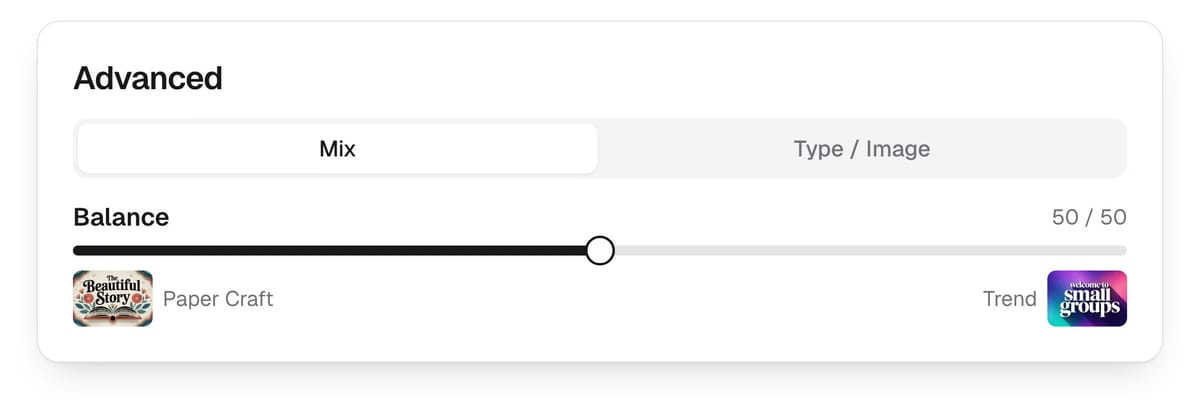
Start balanced, generate once, then nudge Mix or swap Type / Image if the draft needs more type punch or more of the second style’s imagery.
Saved Blends
Found a pair you will reuse for a series or seasonal campaign? Hit Save formula. It lands under the Saved Blends tab so you can apply A × B and your mix settings in one click.
Saved Blends are stored in this browser only. They travel with the device you designed on—not as shared catalog styles, and not across accounts or machines. Think of them as local recipes: quick to reuse on your workstation, easy to rebuild elsewhere if you need to.
More Style Blend examples
A few more community pairs — same A × B idea, different looks.
Risograph
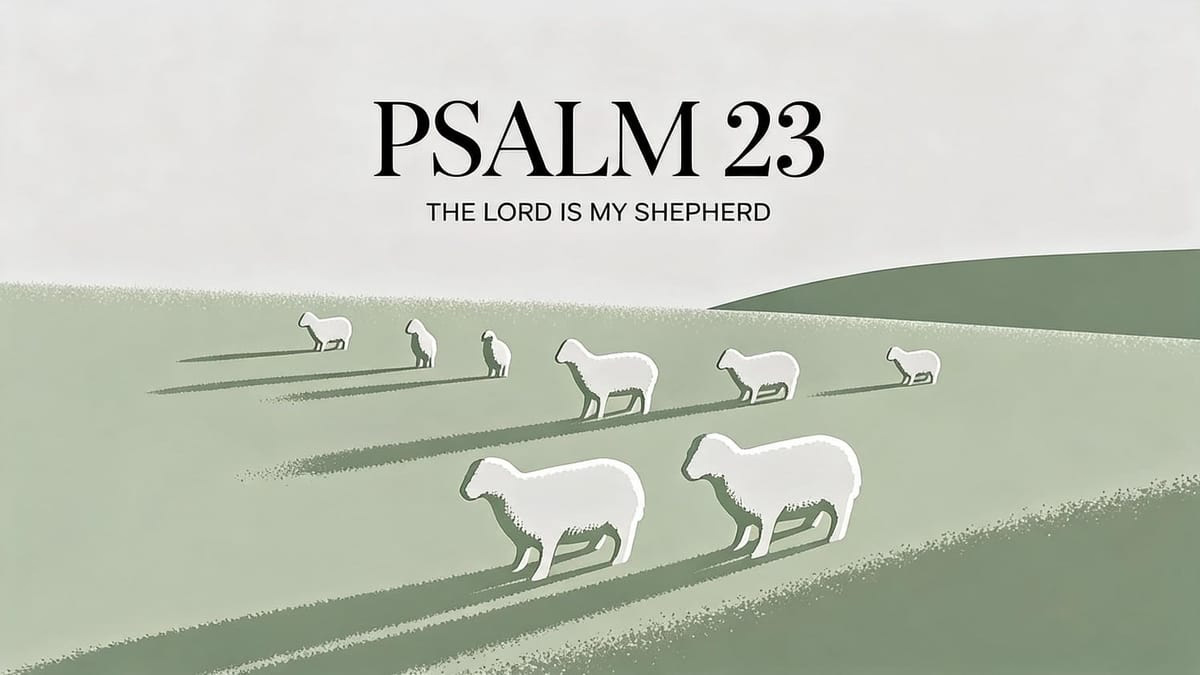
Clean Grain
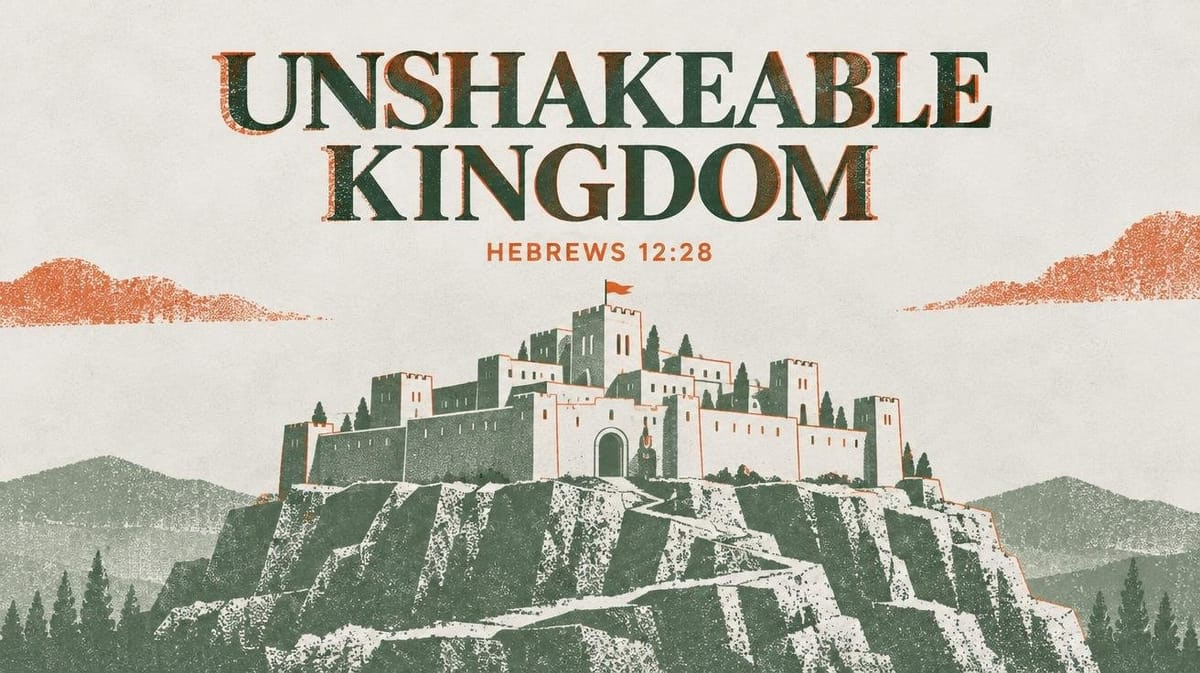
Unshakeable Kingdom
Risograph
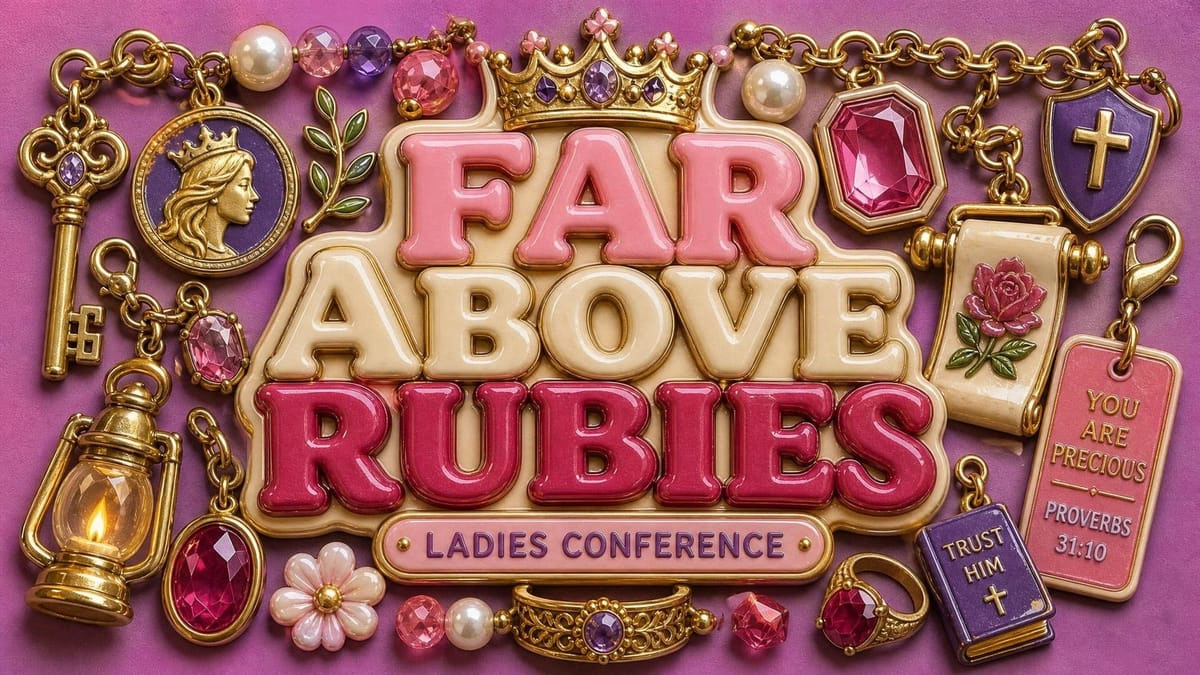
Trinket Charm
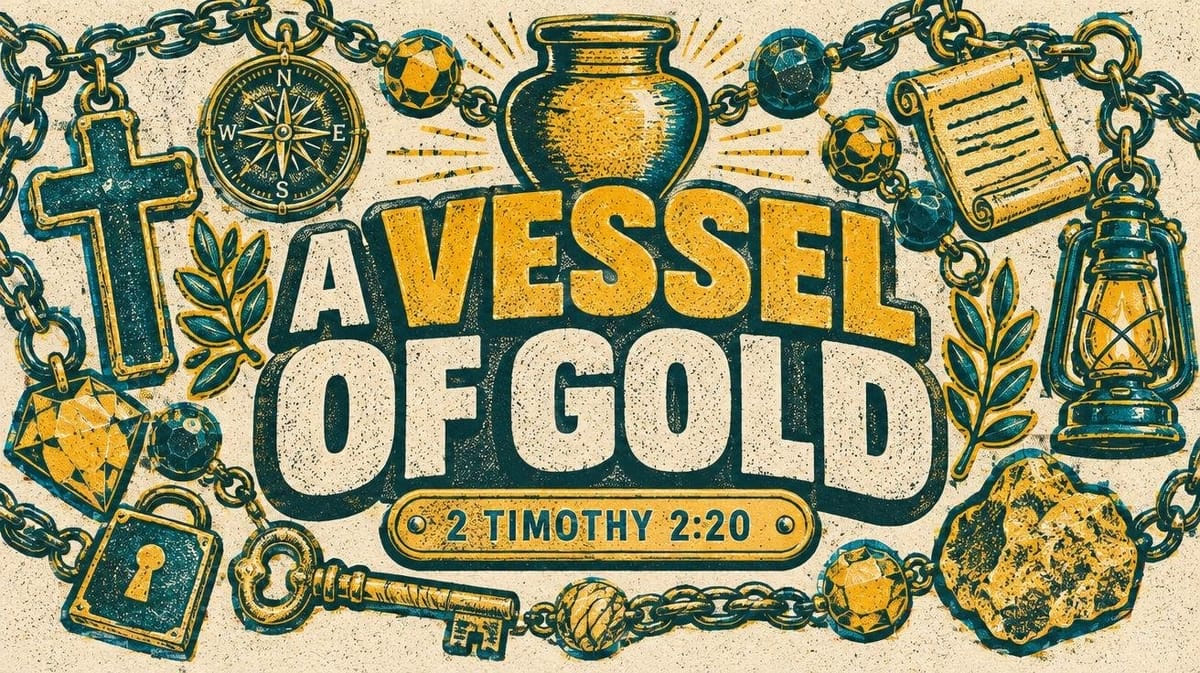
A Vessel of Gold
Playful Doodle
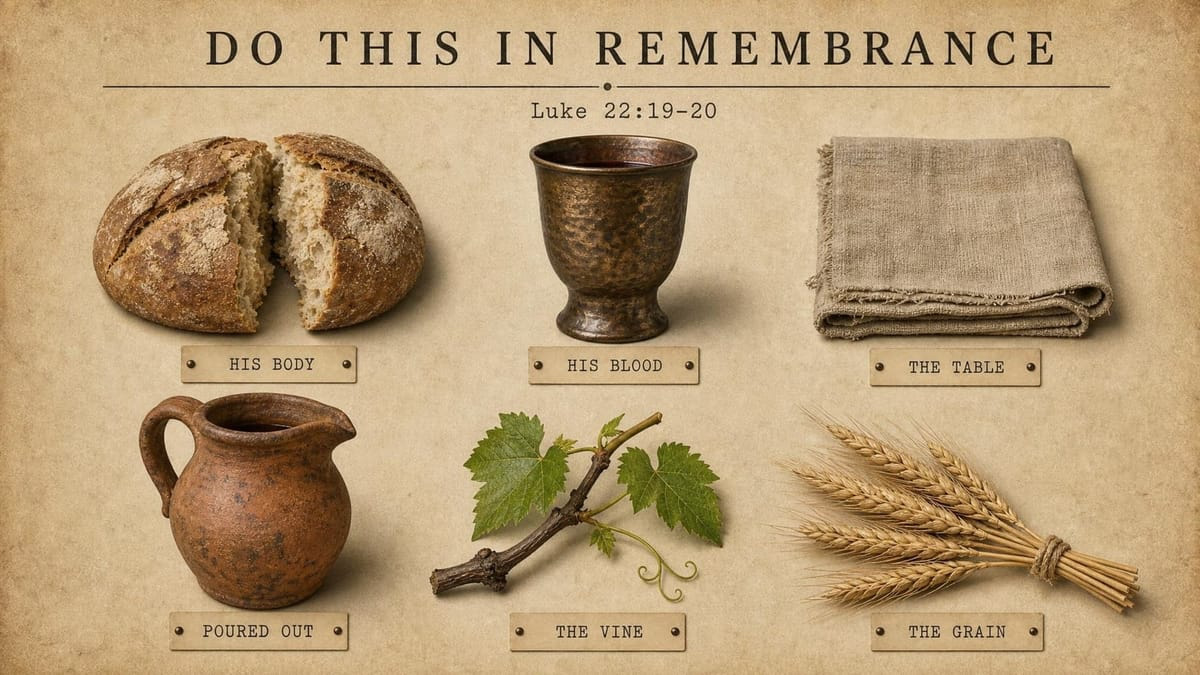
Specimen Archive
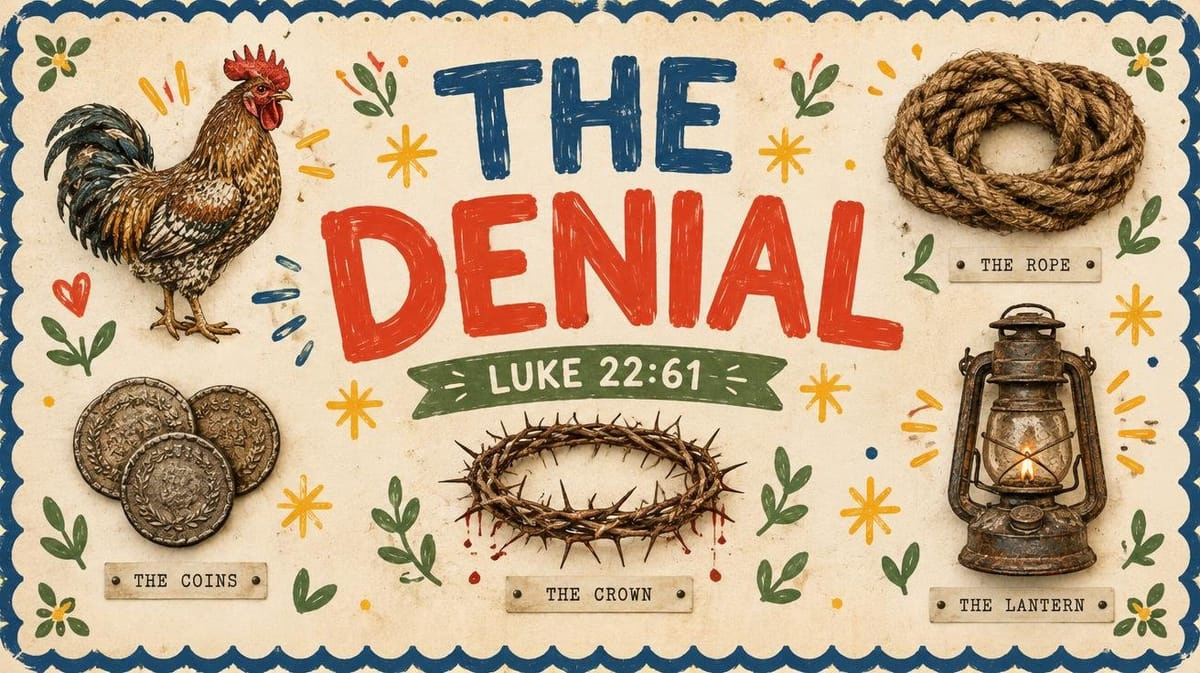
The Denial
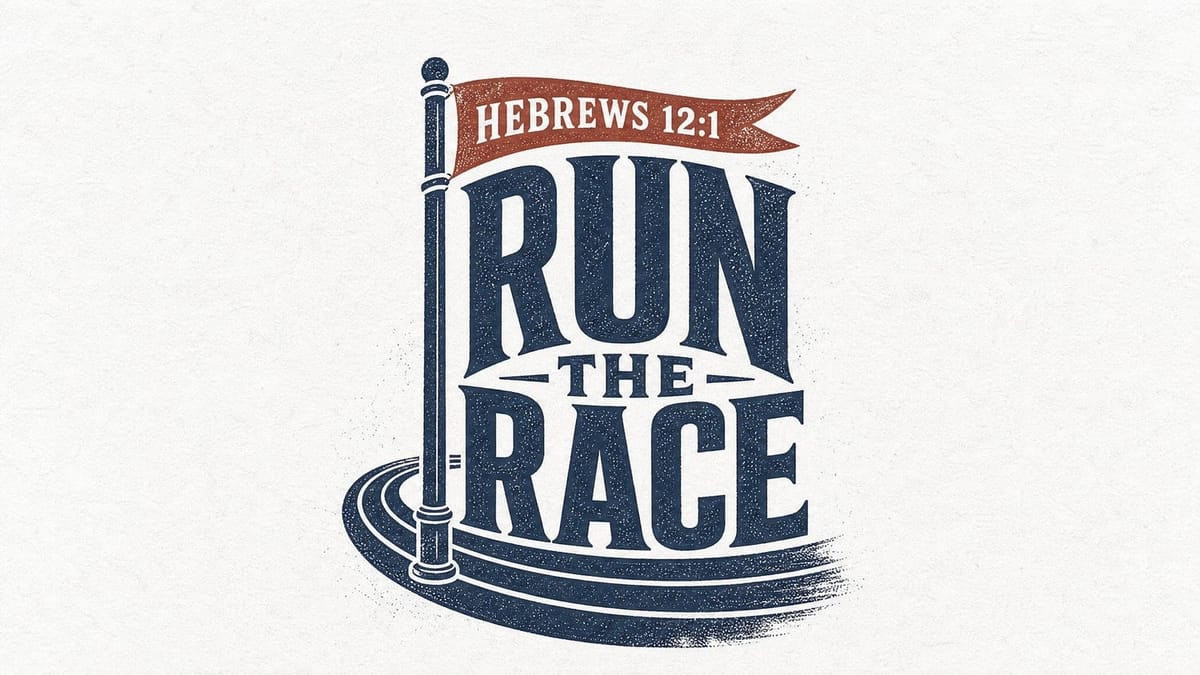
Stamped

Vintage Block
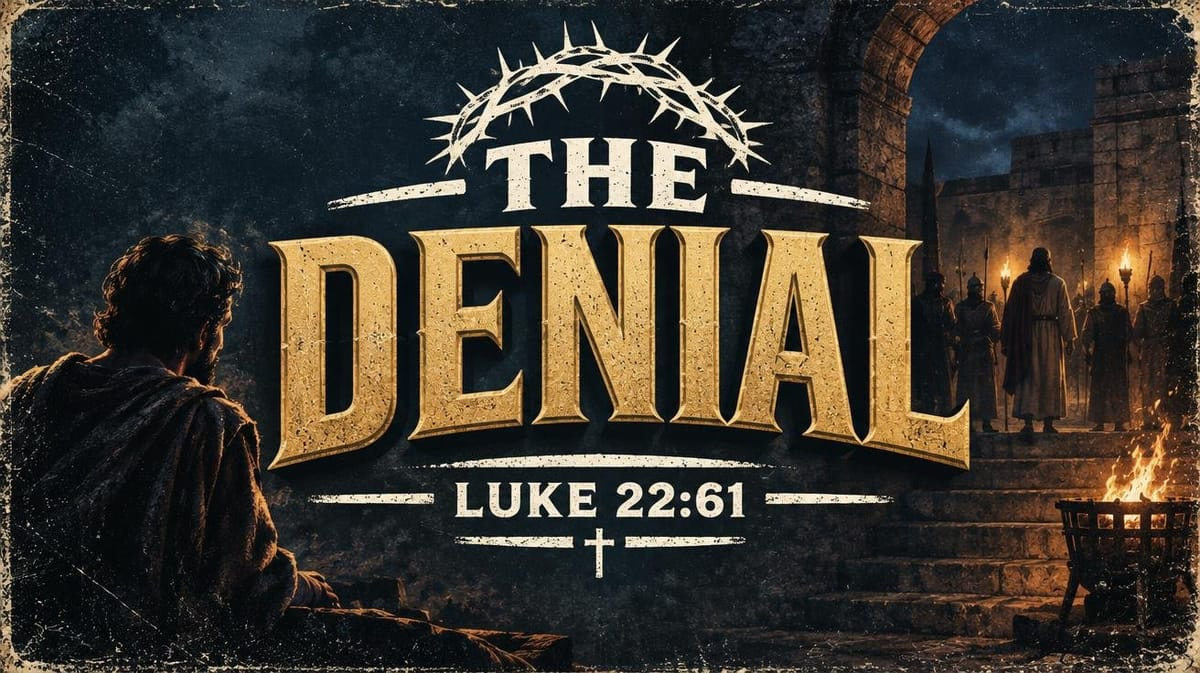
The Denial
Storyboard
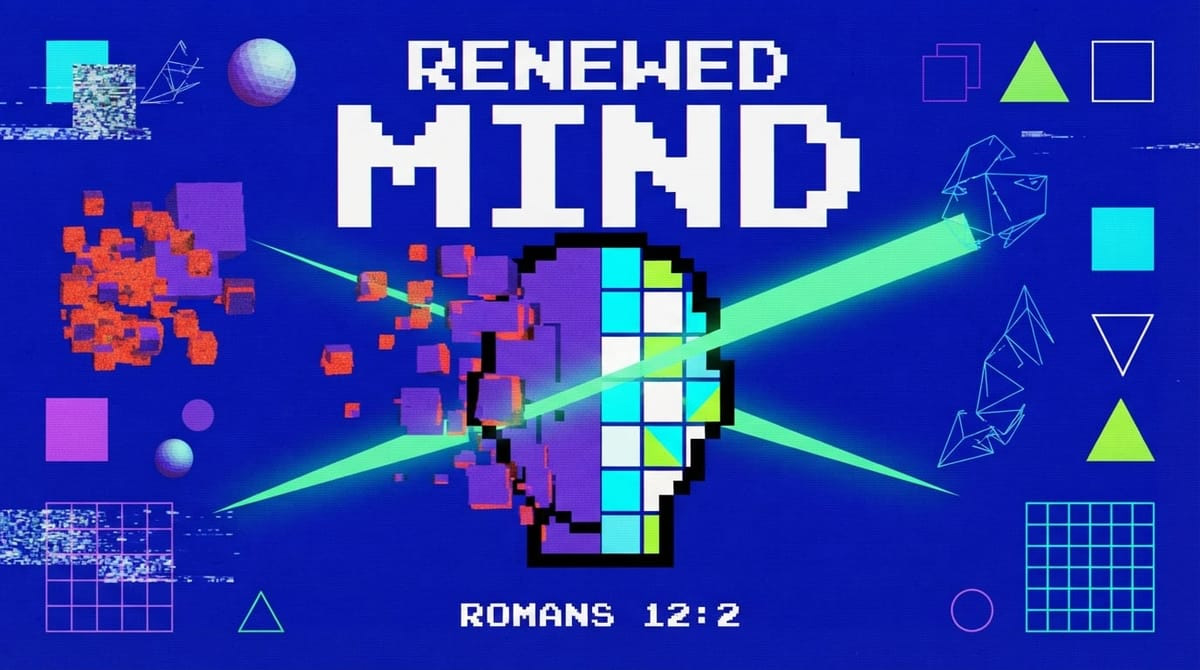
Primitive Signal
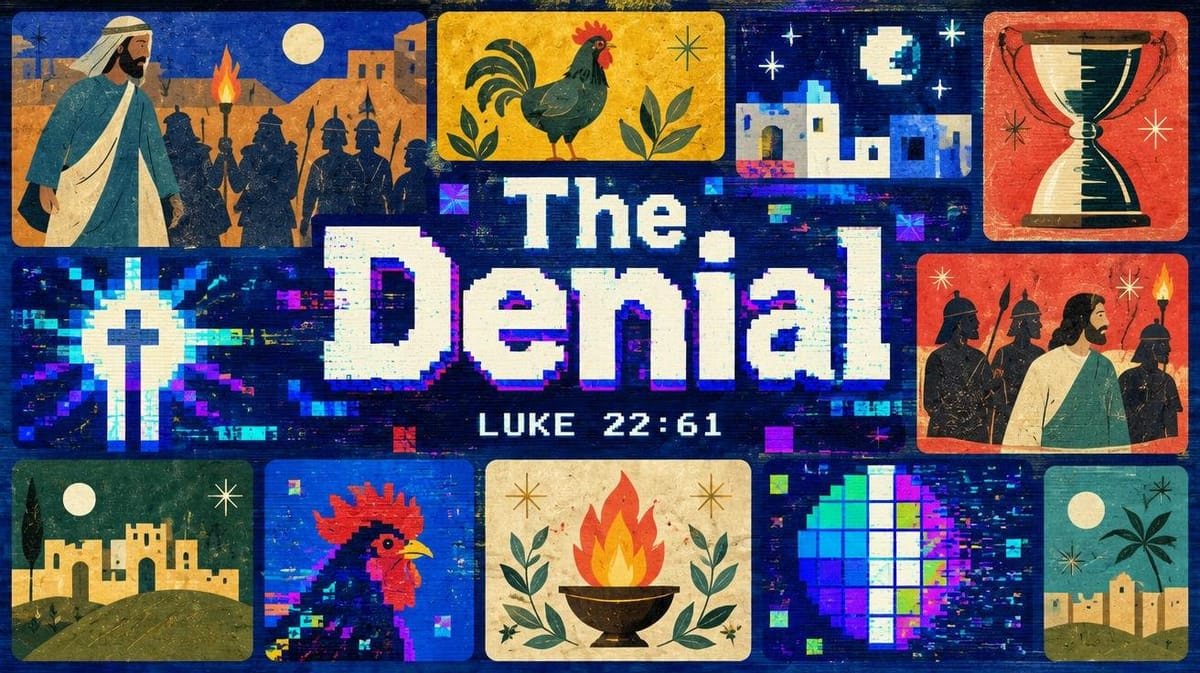
The Denial
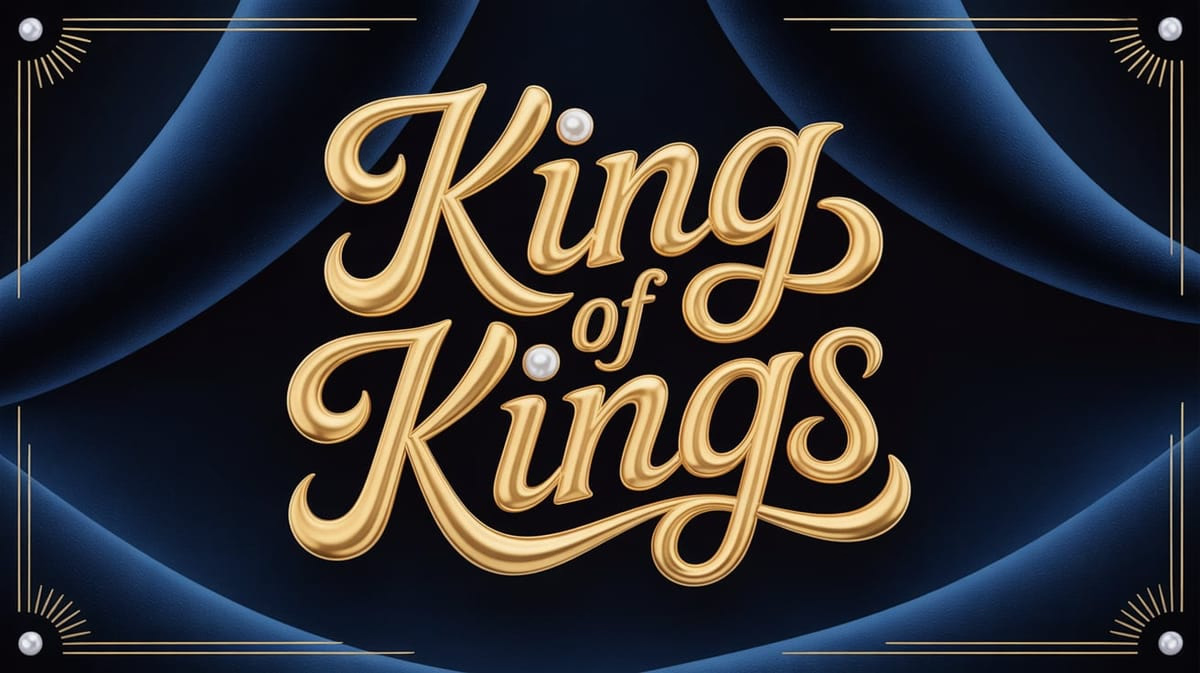
Liquid Gold

Infinite Space

The Road to Damascus
Try it this week
- Log in on a Plus plan and open Generate.
- Open the style picker and turn on Blend.
- Click two catalog styles—or use a random pair to explore.
- Optional: open Advanced, try Mix or Type / Image, then Save formula if you like the combo.
- Prompt a real title from this week’s calendar and generate.
New to the library? Browse looks in the Style Browser, or start from the 50 new style presets drop, then come back here when one look is not enough.
Two styles. One graphic. A × B for Plus teams who already think in looks.
Style Blending FAQ
Who can use Style Blending?
Style Blending is available on Plus (and for admins). Free and Basic plans keep the usual single-style picker. Upgrade to Plus to turn on Blend in the generate style modal.
What does A × B mean?
When you pick two catalog styles, Church Canvas generates one graphic that fuses both looks. The selected style shows as Style A × Style B so you can see the pair at a glance.
What is the difference between Mix and Type / Image?
Mix uses a balance slider so you can lean toward style A or style B (50/50 by default). Type / Image assigns typography to one style and imagery to the other, then lets you swap those roles.
Where are Saved Blends stored?
Saved Blends live in this browser only. They are formulas—style A, style B, and your mix settings—not new styles in the shared catalog. Clearing site data or switching devices will not carry them over.