
GPT Image 2 and Krea 2
GPT Image 2 and Krea 2 are live. Better text rendering, stronger prompts, and more creative options for sermon graphics, events, and social posts.
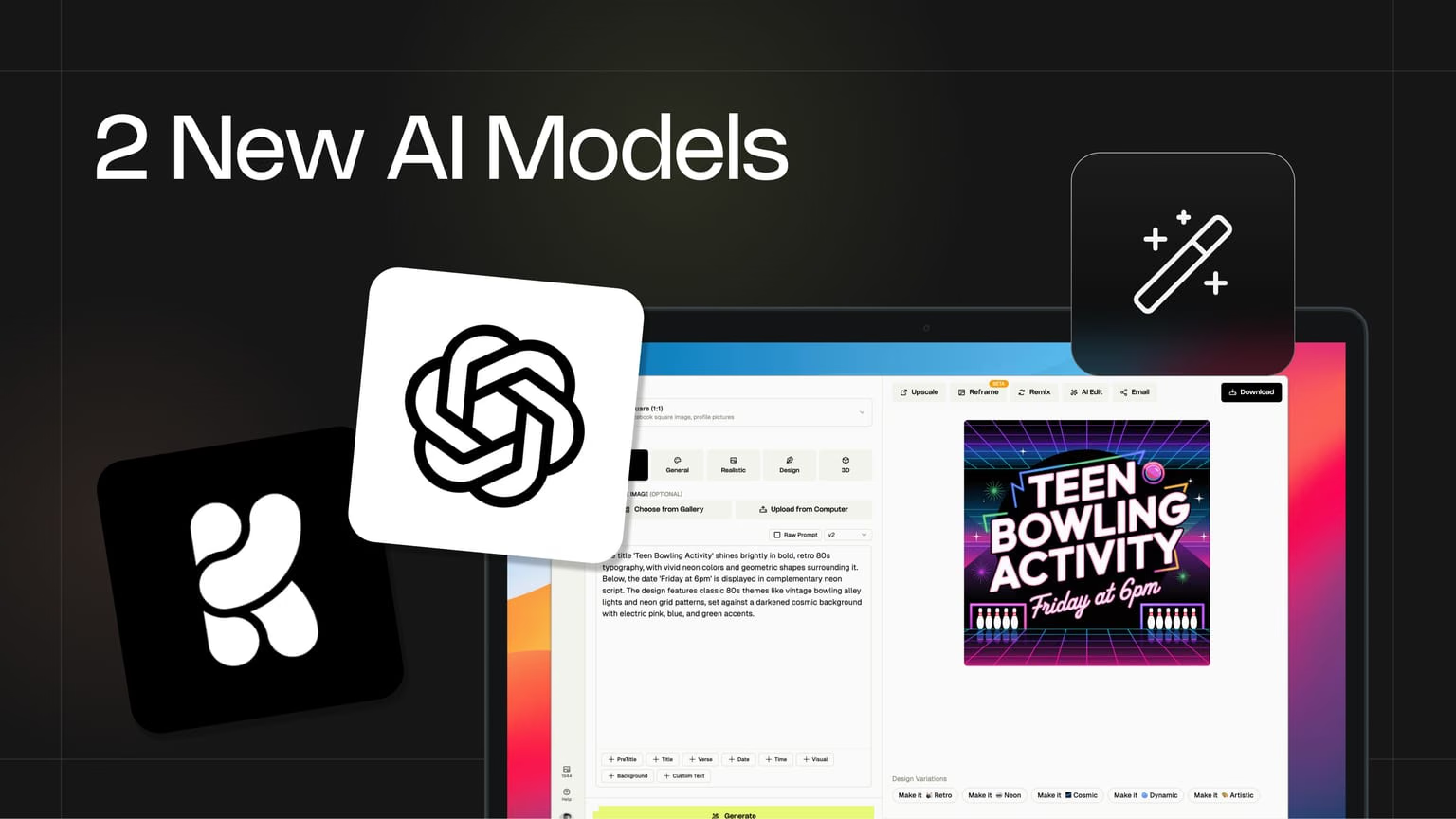
Church graphics are not one-size-fits-all. A youth bowling night flyer needs neon energy. A Good Friday slide needs restraint. A verse graphic lives or dies on whether the text is actually readable.
GPT Image 2
Strong prompt adherence and production-ready text inside the image.
Readable typography
Titles, dates, and verse references that hold up for Sunday graphics.
Source images on Plus
Drop in logos, staff photos, or campus shots with GPT Image 2.
Krea 2
A fast aesthetic option for more interesting, style-forward results.
1 credit turbo default
Krea 2 runs at 1 credit on the default turbo setting for quick exploration.
Same Church Canvas workflow
New models plug into the picker, styles, and tools you already use.
That is why we added two new AI models to Church Canvas: GPT Image 2 and Krea 2. More models means more ways to land the look that fits your church, whether you want cinematic detail, fast creative exploration, or text you can trust on Sunday morning.
Both are live now in the model picker. Here is what they do, when to reach for each one, and why we think GPT Image 2 is a big step forward for ministry design.
Why we keep adding AI models
Your comms calendar mixes sermon series art, event promos, social posts, and slides. Each piece has different priorities. Some need speed. Some need accurate text. Some need a specific visual style carried across a whole campaign.
One engine cannot be best at everything. Church Canvas already let you switch between models like Nano Banana Pro, Seedream, and FLUX. Adding GPT Image 2 and Krea 2 gives your media team two more specialized tools without leaving the same workflow.
If you want a broader guide on picking models, see our article on how to choose the right AI model in Church Canvas. The lineup has grown since that piece shipped, but the idea is the same: match the model to the moment.
GPT Image 2: what it is and why it matters
GPT Image 2 is OpenAI’s newest image generation model. Unlike older systems that bolted a separate image engine onto a chat model, GPT Image 2 is built into the GPT architecture itself. That integration is the headline: the model understands your prompt more like a designer reading a creative brief, not like a keyword matcher guessing at pixels.
Text that actually reads on screen
For churches, this is the game changer. AI-generated text has been unreliable for years. Letters duplicate, spacing breaks, and verse references turn into gibberish. GPT Image 2 is widely regarded as the first generation of models where in-image typography is production-ready for real design work.
OpenAI reports strong results across multiple languages, including English, French, Japanese, and Chinese. For multicultural congregations or bilingual ministries, that matters when you are putting scripture or event details directly into the artwork.
Practical church uses:
- Sermon graphics with the series title and date on the image
- Event promos with time, location, and registration details visible at a glance
- Key verse graphics where the reference and wording need to stay intact
- Announcement slides with longer copy that still fits the layout
Fewer regenerations means less time before Sunday. Your volunteer designers and comms team can spend more energy on message and less on fixing typos in the art.
Stronger instruction following
GPT Image 2 also plans compositions more carefully before it renders. OpenAI describes a reasoning step where the model interprets scene relationships, layout, and visual hierarchy. In plain terms: when you ask for “title at the top, cross centered, dark blue background, soft light from the left,” the output is more likely to match what you described.
Inside Church Canvas, GPT Image 2 shows up under Pro Models with the note strong prompt adherence. That is the right mental model. Use it when your prompt is specific and you want the result to respect the details.
Higher resolution and cleaner color
GPT Image 2 supports output up to 4K resolution on supported aspect ratios. For social graphics and slide backgrounds that need to hold up on large screens, the extra pixel headroom helps.
Early GPT image models sometimes pushed a warm yellow cast across neutrals. GPT Image 2 renders whites and grays more neutrally, which is useful when you are matching brand colors or printing event materials.
Source images on Plus
Plus users can pair GPT Image 2 with source images, the same My Assets workflow you may already use with Nano Banana Pro. Drop in your logo, a staff photo, or a building shot and describe how it should appear in the layout. GPT Image 2 can combine up to eight reference and source images in a single generation.
That opens branded social graphics and series art where your church identity stays visible without manual compositing in another tool.
When to reach for GPT Image 2
Best for:
- Text-heavy designs where readability is non-negotiable
- Detailed prompts with layout, color, and composition instructions
- Branded graphics with logos or photos (Plus)
- Pro Styles that require a premium model
Tradeoff: GPT Image 2 costs 3 credits per generation and requires a Plus plan. Save it for graphics where quality and accuracy matter most, not quick rough drafts.
Krea 2: another creative option in the picker
Krea 2 comes from a different direction. Krea built it as a foundation image model from scratch, with a heavy focus on how an image looks, not just what is in it. In Church Canvas it is another option when you want more interesting or style-forward results.
It can also use style reference images when you want to steer the look. Pass in a reference and Krea 2 can pull color, texture, and aesthetic cues into a new prompt. That is useful sometimes, but it is not the only reason to pick it. Try it when you want a different creative direction from your default model.
Why churches will like it
Krea trains for aesthetic range. Film grain, clean studio shots, illustrated looks, and experimental directions all sit in scope. If your church leans artistic or cinematic rather than flat and corporate, Krea 2 is worth a spin on youth graphics, social posts, and campaign art.
You can also open it when you already have a graphic you like and want the next one to rhyme with it. Upload a reference, pick Krea 2, and describe the new content. Results will vary, and that is part of the point: another path when you are exploring looks.
Fast by default
In Church Canvas, Krea 2 defaults to the medium-turbo variant. It is tuned for speed and exploration. Most generations cost 1 credit, so your team can try more directions in a single sitting.
In the model picker you will see: style references · fast turbo default. That is a solid fit for weekly social content and quick ideation when Sunday is close.
When to reach for Krea 2
Best for:
- Style-forward social posts and youth graphics
- Exploring creative directions quickly at 1 credit each
- Designs where the visual mood matters more than long in-image text
- Optional style references when you want to steer toward an existing look
Tradeoff: For dense announcement copy or long scripture blocks inside the artwork, GPT Image 2 or FLUX 2 Flex may still be the better fit. Use Krea 2 when the look is the lead and the text is short.
GPT Image 2 vs Krea 2 at a glance
Both models are new. They solve different problems.
- GPT Image 2 — instruction following, readable text, high-resolution output, source images on Plus. Pro model, 3 credits.
- Krea 2 — aesthetic range, fast exploration, optional style references. Available on standard plans, 1 credit on turbo.
Many weeks you will use your usual default for quick sermon art, then switch to GPT Image 2 for the slide with the full event schedule, or Krea 2 when you want a more interesting youth graphic or social look.
How to try them
Log in to Church Canvas, open the generator, and click the model picker. You will find Krea 2 in the main list and GPT Image 2 under Pro Models.
Pick a real prompt from this week’s calendar. Generate the same idea twice with different models and compare. Your media team will quickly build a sense for which engine fits which job.
We are excited to see what you make. If you try both on the same project, share the results in the community gallery so other churches can learn from your workflow.
More models. Same simple Church Canvas workflow. Better graphics for the people you serve.
GPT Image 2 and Krea 2 FAQ
What is GPT Image 2?
GPT Image 2 is OpenAI's latest image generation model. It is built into the GPT architecture, so it follows instructions more reliably and renders text in images with much higher accuracy than earlier models. In Church Canvas, it is a Pro model that costs 3 credits per generation.
What is Krea 2?
Krea 2 is a foundation image model focused on aesthetics and creative range. It can give more interesting style-forward results, and it supports style reference images when you want to steer the look. In Church Canvas it costs 1 credit per generation on the default turbo setting.
Which model should I use for church graphics with a lot of text?
Start with GPT Image 2 when your graphic needs readable titles, dates, verse text, or announcement copy baked into the design. It is built for instruction following and typography. For shorter headlines on more visual designs, Krea 2 or your usual default model may be enough.
Do I need a Plus plan to use GPT Image 2 and Krea 2?
Krea 2 is available on standard plans. GPT Image 2 is a Pro model and requires a Plus subscription. Both appear in the model picker inside the Church Canvas generator.
Can I use my church logo or photos with these models?
Plus users can add source images with GPT Image 2, the same way you do with Nano Banana Pro. Krea 2 supports style reference images so you can steer the look of a graphic toward an existing design or mood.